

 Shimul Chowdhury
Introduction
What is AnyType?
In an era where digital productivity tools are indispensable, AnyType stands out as a revolutionary platform. It allows users to create customizable, no-code workspaces that adapt to their needs. Whether you’re a professional managing project or a student organizing coursework, AnyType offers a flexible and intuitive solution. One of its standout features is the ability to use an AnyType custom bookmark thumbnail, personalizing the workspace and enhancing its functionality and aesthetic appeal.
The Importance of Visual Organization

Visual organization has become a cornerstone of digital productivity. Studies show that the human brain processes images 60,000 times faster than text, so tools incorporating visuals are more efficient. AnyType custom bookmark thumbnails provide an intuitive way to identify and manage bookmarks, making navigation seamless. These visual cues enhance the user experience by reducing cognitive load and improving task efficiency.
Why Custom Bookmark Thumbnails Matter
While AnyType’s default thumbnails offer a functional starting point, they often need more personalization users need. Creating an AnyType custom bookmark thumbnail allows users to tailor their workspace to reflect their unique preferences, align with branding, or visually organize their tasks. This blog will walk you through the step-by-step process of designing these thumbnails, showcasing how they can elevate productivity and bring a touch of creativity to your digital environment.
What Are AnyType Custom Bookmark Thumbnails?
Defining Bookmark Thumbnails in AnyType
Bookmarks in AnyType are essential tools for quickly accessing important pages or links. Thumbnails act as the visual representations of these bookmarks. An AnyType custom bookmark thumbnail is a user-designed image that replaces the default thumbnail, providing a more personalized and functional visual cue. These thumbnails can range from logos and icons to creative graphics that align with a specific project or theme.
For instance, a default bookmark might show a generic image or the website’s favicon, which only sometimes conveys the content context. Replacing it with an AnyType custom bookmark thumbnail—such as a company logo for corporate files or a subject-specific icon for academic notes—can vastly improve recognition and usability.
Limitations of Default Thumbnails

While functional, default thumbnails often need more clarity and customization. They might not represent the bookmark’s content accurately or fit within the aesthetic of your workspace. In contrast, an AnyType custom bookmark thumbnail allows you to create visuals that are:
- Relevant: Match the content or purpose of the bookmark.
- Aesthetic: Enhance the overall appearance of your workspace.
- Organized: Provide a consistent visual language across bookmarks.
Real-World Applications
Custom bookmark thumbnails aren’t just a visual luxury—they serve practical purposes. For example:
- Professionals can assign branded thumbnails to client files, presentations, or Team documents, ensuring a polished, cohesive look.
- Students might use colour-coded thumbnails for subjects like math, science, and history, simplifying navigation during study sessions.
- Creatives can use personalized icons to manage inspiration boards, portfolios, or project timelines.
By implementing AnyType custom bookmark thumbnails, you create a workspace that is functional and uniquely yours.
Benefits of AnyType Custom Bookmark Thumbnails for User Experience
Visual Clarity and Efficiency
One of the most significant advantages of using an AnyType custom bookmark thumbnail is the clarity it brings to your workspace. Visual identifiers allow you to locate bookmarks quickly, reducing the time spent searching for specific resources. For example, instead of reading through a list of bookmarks, you can instantly recognize the thumbnail associated with a particular project or task.
Branding and Professionalism
An AnyType custom bookmark thumbnail is a subtle yet powerful business branding tool. Professionals can create a cohesive and visually appealing workspace by incorporating logos, brand colours, or thematic graphics. This reinforces the brand identity and leaves a strong impression during client presentations or collaborative sessions.
Personalization and Motivation

A workspace tailored to your aesthetic preferences can have emotional and psychological benefits. Customizing your AnyType custom bookmark thumbnail to align with your minimalistic, colourful, or thematic style can make your workspace more engaging. When your workspace reflects your personality, tasks feel less like chores and more like creative endeavours.
- Real-Life Examples
Consider these scenarios where an AnyType custom bookmark thumbnail transforms the user experience:
- A marketer uses thumbnails of campaign logos to organize client materials efficiently.
- A designer integrates sleek, modern icons to match their creative projects’ themes.
- A student creates playful, subject-themed thumbnails to differentiate between coursework and extracurriculars.
These use cases demonstrate how a visually engaging workspace can boost productivity across different fields.
Preparing to Create Custom Bookmark Thumbnails
Creating AnyType custom bookmark thumbnails requires preparation to ensure your designs are functional and visually appealing. Here’s how you can lay the groundwork effectively:
Tools for Designing Custom Thumbnails
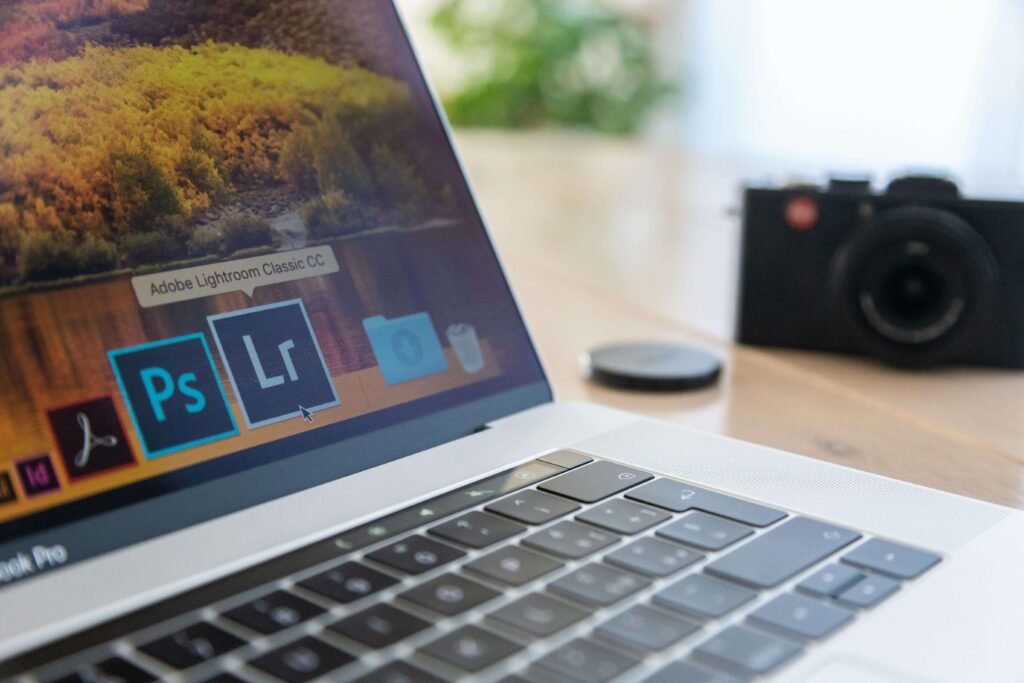
The first step is choosing the right tools for creating your thumbnails. Your choice will depend on your design experience and needs:
- Canva: Canva is perfect for creating clean, professional thumbnails with minimal effort. The drag-and-drop functionality and preset design elements make crafting unique designs for AnyType custom bookmark thumbnails easy.
- Adobe Photoshop: A professional-grade tool, Photoshop allows for intricate design control. Whether layering effects, using advanced typography, or adding custom graphics, this software is perfect for seasoned designers.
- Figma: Figma excels in collaborative and vector-based design, making it a Team favourite. It’s beneficial for creating thumbnails for a more considerable workspace redesign.
- Free Tools: For budget-conscious users, options like GIMP and Photopea provide robust features without the cost. With some practice, these tools can help you design high-quality AnyType custom bookmark thumbnails.
Inspiration and Style Definition
Finding inspiration for your designs is crucial in creating visually striking thumbnails. Here are some ways to kickstart your creativity:
- Pinterest and Behance are treasure troves of design ideas. Search for workspace designs, branding concepts, or minimalist aesthetics to find styles that resonate with you.
- Theme-Specific Templates: Align your designs with a theme that suits your workspace, whether professional, creative, or academic. For instance, a marketer might choose vibrant colours, while a student might opt for simple subject-based icons.
Defining your style in advance ensures that your AnyType custom bookmark thumbnails remain cohesive and visually engaging.
Thumbnail Design Guidelines
To ensure your thumbnails look their best in AnyType, follow these design standards:
- Dimensions and Resolution: Thumbnails should be optimized for clarity. A size of 500 x 500 pixels at 72 DPI works well for most use cases.
- File Formats: Use PNG for transparent backgrounds and JPEG for solid designs. These formats maintain quality while ensuring compatibility.
- Aspect Ratio: Maintain a 1:1 ratio to avoid distortion in AnyType’s interface.
Adhering to these guidelines guarantees that your AnyType custom bookmark thumbnails are attractive and functional.
Organizing Your Workspace Before Starting
A well-organized workspace simplifies the customization process. Start by mapping out your bookmarks and categorizing them by theme. For example, group all work-related bookmarks under one category and personal bookmarks under another. This approach helps maintain visual consistency across your thumbnails.
Before you start designing, consider naming your bookmarks clearly in AnyType. This small step ensures that your thumbnails align perfectly with their corresponding bookmarks, making your workspace intuitive and aesthetically pleasing.
Step-by-Step Guide to Creating AnyType Custom Bookmark Thumbnails
Now that you’ve prepared, it’s time to design and upload your AnyType custom bookmark thumbnails step-by-step.
Step 1: Plan Your Thumbnails
Begin by brainstorming visual concepts for your thumbnails. Think about the purpose of each bookmark and how you can represent it visually. Some ideas include:
- Professional Workspaces: Use logos or corporate icons.
- Creative Themes: Experiment with artistic symbols, like paintbrushes or abstract shapes.
- Minimalist Designs: Stick to clean, geometric patterns.
Your plan should also consider colour schemes and typography that align with your overall workspace design. For instance, a cohesive set of AnyType custom bookmark thumbnails can feature a uniform palette to create a polished look.
Step 2: Design Your Thumbnails
Using Canva: Canva simplifies the design process for beginners. Start by choosing a template that fits a square format. Use its drag-and-drop tools to add icons, text, and background colours. Adjust the elements to ensure readability when the thumbnail is scaled down.
Using Photoshop: Photoshop offers precise control over layers, effects, and typography for advanced designs. Begin by creating a new file with a 500 x 500-pixel canvas. Add layers for each design element and use blending options to create depth. Test the design at reduced dimensions to ensure your text is legible at smaller sizes.
Other Tools: If you’re using GIMP or Figma, follow a similar process. Focus on simplicity, clarity, and alignment. Export your designs in the appropriate file format for AnyType.
Step 3: Optimize for Functionality
Thumbnails need to be both visually appealing and functional. To optimize your designs:
- Test Readability: Shrink your design to thumbnail size to ensure it’s clear and recognizable.
- Use High-Contrast Colors: This ensures visibility, even on bright or dark backgrounds.
By keeping these principles in mind, you’ll create AnyType custom bookmark thumbnails that are both effective and aesthetically pleasing.
Step 4: Save and Export Your Designs
Exporting your thumbnails correctly is essential. Save them as PNG or JPEG files with a 72 DPI resolution to maintain clarity without excessive file size. Avoid common mistakes like incorrect aspect ratios or saving files in unsupported formats.
Step 5: Upload Your Thumbnails to AnyType
Finally, upload your thumbnails into AnyType. Navigate to the bookmark settings, select the thumbnail replacement option, and upload your custom design. If you encounter issues, check that your file meets the resolution and format requirements.
Once uploaded, preview your workspace to ensure the thumbnails align perfectly with your bookmarks. This final step completes your journey toward a more personalized and organized workspace.
Tips for Designing Effective Thumbnails
Consistency is Key
Maintaining consistency is one of the most critical aspects of designing an AnyType custom bookmark thumbnail. Uniformity in design elements like colour schemes, fonts, and iconography helps create a cohesive and professional workspace. For example, if you’re organizing bookmarks for a client project, use the same colour palette and font style across all related thumbnails. This not only makes your workspace visually appealing but also improves navigation.
Emphasize Simplicity
Simplicity is often the best design principle for thumbnails. Overly complex designs can be challenging to interpret when thumbnails are scaled down. Stick to precise, bold shapes and minimal text to ensure your thumbnails remain functional. For instance, a minimalist thumbnail with a solid background and a single recognizable icon often works better than intricate, text-heavy designs.
Test for Usability
Once you’ve designed your thumbnails, test their usability. Upload them to AnyType and check how they look within your workspace. Are they easy to identify at a glance? Do they fit well within the overall layout? Consider gathering feedback from peers or Team members to refine your designs further. This process ensures that your AnyType custom bookmark thumbnails are attractive and practical.
Use Quality Graphics
Always use high-resolution images or vector graphics to avoid pixelation. Scalable vector graphics (SVGs) are beneficial as they maintain quality at any size. Avoid blurry or low-quality images, as they detract from the professional appearance of your workspace.
Explore Advanced Design Techniques
Experiment with advanced design elements like gradients, shadows, and transparency for those looking to add an extra layer of sophistication. These techniques can add depth and polish to your thumbnails, making them stand out.
Examples of Creative Custom Thumbnails
- Professional Setups
Consider a law firm using branded thumbnails for their bookmarks. Each thumbnail could feature a unique icon, such as a gavel for legal documents or a scale for compliance resources. These thumbnails create a professional, organized workspace that reflects the firm’s brand identity.
- Minimalist Designs
A student might opt for simple, subject-themed thumbnails, such as a yellow icon for math, a green one for science, and a blue one for history. Minimalist designs are visually clean and make it easier to differentiate between bookmarks.
- Themed Workspaces
A travel blogger could create an AnyType custom bookmark thumbnail set inspired by global landmarks. Thumbnails featuring the Eiffel Tower, the Great Wall of China, or tropical beaches can bring personality and creativity to the workspace.
- Unique Ideas to Inspire
Some users take customization to the next level by designing thumbnails that tell a story. For example, a creative portfolio designer might use thumbnails resembling sketchbooks or mood boards. These unique ideas can elevate your workspace from functional to inspiring, encouraging creativity and productivity.
By exploring these examples, you can see how an AnyType custom bookmark thumbnail can transform a workspace into something genuinely personalized and engaging.
How Zeireed Can Help You Craft Custom Thumbnails
- Zeireed’s Expertise in Design
Zeireed excels in UI/UX design, focusing on creating visually stunning and functional digital assets. If crafting an AnyType custom bookmark thumbnail feels overwhelming or time-consuming, Zeireed offers expert assistance to bring your ideas to life. Our designers specialize in creating thumbnails that align with your unique needs, whether for personal or professional use.
- Services Tailored to Your Needs
Zeireed provides a range of design services to enhance your workspace, including:
- Custom Thumbnails: Personalized designs that reflect your style or brand.
- Brand Identity Integration: Thumbnails that match your logos, colour schemes, and design guidelines.
- Theme Development: Complete workspace designs to ensure visual consistency.
- Testimonials and Case Studies
We’ve helped numerous clients elevate their digital workspaces. One example is a marketing agency that transformed its workflow using branded thumbnails for campaign assets, significantly improving Team collaboration. Another case involved a student who personalized their study resources with creative thumbnails, making learning more engaging. These success stories highlight how Zeireed’s services can make a real impact.
Ready to enhance your workspace? Contact Zeireed today to get started on your custom thumbnail project. We offer a free consultation to help you visualize your ideal AnyType custom bookmark thumbnails and turn your ideas into reality. Visit our website or reach out to us directly for more information.
Conclusion
Key Takeaways
Creating an AnyType custom bookmark thumbnail is more than just a design exercise—it’s a powerful way to boost productivity, improve organization, and express creativity. You can transform your workspace into a visually engaging and efficient environment by replacing generic thumbnails with personalized designs. Whether you’re a professional seeking to enhance branding, a student aiming for better organization or a creative looking to reflect your style, custom thumbnails offer endless possibilities.
Encouraging Action
The process might seem daunting initially, but anyone can create compelling thumbnails with the right tools, guidance, and inspiration. Start experimenting with Canva or Photoshop designs, or gather ideas from platforms like Pinterest and Behance. If you need more time or expert assistance, Zeireed is here to help with professional-grade design services tailored to your needs.
Take the first step today by planning and designing your AnyType custom bookmark thumbnail. With a little effort, you’ll create a functional workspace and a true reflection of your personality and goals. Don’t wait—start designing now, or reach out to Zeireed to bring your vision to life!