

 Shimul Chowdhury
Introduction: The Unspoken Cost of a Slow WordPress Site to Speed Up WordPress Site
In the competitive digital landscape, a website’s speed is no longer a luxury but a fundamental requirement for success. Research has repeatedly demonstrated the profound impact of site performance on user experience, search engine optimization (SEO), and business conversion rates. A sluggish website can frustrate visitors, leading to a high bounce rate, while a fast site can significantly boost sales and user engagement. The consequences of slow page speeds are significant. The relationship between load time and conversion is a consistent finding across various studies. For example, Walmart discovered that for every one-second improvement in their page load time, they saw a 2% increase in conversion rates. Similarly, another company, Mobify, found that each 100-millisecond improvement in their homepage’s load time led to a 1.11% increase in conversion.This impact is further highlighted by the BBC’s discovery that a one-second delay in page loading resulted in a 10% loss of its audience, proving that speed is critical for retaining users. In the B2B e-commerce landscape, website loading speed is a critical factor that directly influences conversion rates. Research indicates a significant disparity in performance between fast and slow-loading sites. Improving a B2B website’s loading speed can have a significant impact on its success. When a website’s loading time is reduced from 10 seconds to a single second, its conversion rate can increase fivefold. From an SEO perspective, Google prioritizes getting relevant information to users as quickly as possible, making website speed a core factor in search rankings, particularly on mobile devices.
The purpose of this report is to move beyond conventional lists and provide a definitive, actionable guide to speed up WordPress site. This guide covers 11 critical strategies, from choosing the right foundation to implementing advanced optimizations, all supported by expert analysis and data. This report is intended for a wide audience—from bloggers and small business owners to web developers—who want to understand the strategic and technical aspects of WordPress performance. The goal is to empower readers with the knowledge to make informed decisions that will have a measurable impact on their site’s success.
Part 1: Foundational Steps to Speed Up WordPress Site
The speed of a WordPress site is not just about plugins and tweaks; it is determined by the core infrastructure built upon. This section covers the three most critical, non-negotiable factors for high performance. A crucial first step to speed up WordPress site is selecting the right web host.
Tip 1: The Critical Choice of a Web Host

The foundation of any high-performing WordPress site is its web hosting. This choice is the single most crucial factor influencing speed and reliability. When a website loads, the server has to process requests, and a slow server response time can negate all other optimization efforts. Another key option is managed WordPress hosting, which is a service designed specifically for the WordPress platform. A managed hosting provider is responsible for critical technical tasks such as performing updates, creating backups, and ensuring security. This type of service can be layered on top of other hosting environments, such as shared or cloud hosting.
In shared hosting, a single server hosts multiple websites, with each website sharing the server’s resources like memory and processing power. While this is the most affordable option, it poses a significant risk: if one site on the server experiences a sudden traffic spike, the performance of all other sites can suffer, leading to slow response times for every user. In contrast, managed WordPress hosting is an environment specifically optimized for WordPress sites, offering features like enhanced security, daily backups, and automatic core updates, which significantly reduce the administrative burden on the user. The superior resource allocation and infrastructure on a managed host translate to a more reliable and faster user experience, even during busy server times.
A key, often unseen, advantage of managed hosting is server-level caching. Instead of relying on a plugin to cache pages, the host manages this process directly on the server, a method that is both faster and more efficient. Using server-side caching can significantly decrease a website’s overall page load time by more than 23%, and it can lower the critical Time to First Byte (TTFB) by as much as 90%. In one instance, activating server-level caching caused the TTFB to drop from over 200 ms to less than 40 ms. A common but potentially detrimental mistake is to install a popular caching plugin on a managed hosting platform. Many managed hosts, like Kinsta, explicitly prohibit such plugins because they can interfere with the host’s robust server-level caching, leading to conflicts and a deterioration of performance. The choice of host, therefore, dictates the caching strategy, and for a high-performance setup, it is often best to let the host handle this at the server level.
A higher investment in managed hosting directly translates to better performance, improved security, and greater peace of mind for website owners. This is because the hosting provider handles all the technical aspects, such as updates, maintenance, and expert support, allowing you to focus on your core business. While shared hosting is suitable for a simple blog with minimal traffic, a growing website or a business that depends on conversions will find the investment in managed hosting pays for itself in time saved and better results.
Tip 2: Use a Lightweight and Optimized Theme to Speed Up WordPress Site
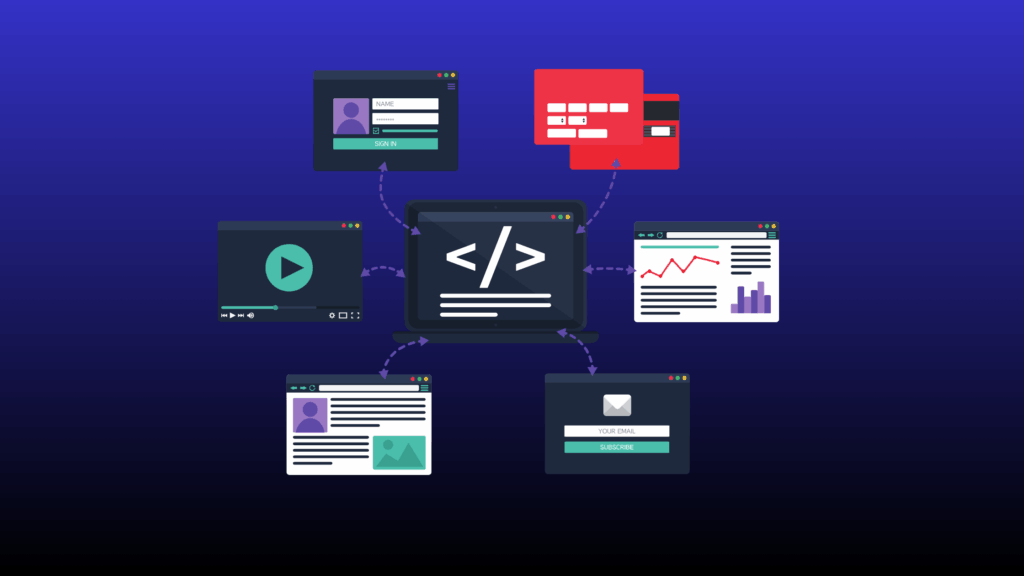
The theme of a WordPress site acts as its skin, but its underlying code can have a significant impact on performance. To effectively speed up WordPress site, the theme you choose plays a vital role. Bloated themes, often sold as “multipurpose,” are packed with a vast array of features, scripts, and complex animations that add significant “weight” to a webpage. This extra code and the numerous HTTP requests it generates lengthen the time it takes for a page to load, resulting in a poor Core Web Vitals score.
The ideal solution is to select a theme that is both lightweight and optimized. These themes have a clean and streamlined code structure, focusing on essential functionalities and a minimalist design. They reduce the amount of data that needs to be loaded, leading to faster page rendering and a better user experience. Examples of themes that are well-known for their speed include Hello Elementor, a minimalist theme that loads in a fraction of a second; GeneratePress, praised for its modular design and Neve is an extremely fast and flexible theme, and it is known for its exceptional speed.
A common misconception is that a theme with many features must be slow. However, the evidence suggests that the problem is not the quantity of features but the quality of the code. For example, Divi is a feature-rich theme with a powerful drag-and-drop builder, yet it is engineered for performance and scored a perfect 100/100 performance score on both PageSpeed Insights and GTmetrix tests, with all Core Web Vitals in the green. This demonstrates that a well-coded, feature-rich theme from a reputable developer can significantly outperform a poorly coded, simple one. Therefore, the strategic approach is not just to seek a “minimalist” label but to choose a theme from a developer with a proven commitment to performance optimization.
Tip 3: The Unavoidable Need for Image Optimization to Speed Up WordPress Site

Images are a cornerstone of modern web design, but they are also the single largest contributor to page weight, which directly impacts site speed. Image optimization is a non-negotiable step to speed up WordPress site. The burden of unoptimized images can significantly lengthen page load times, a metric that is critical for Core Web Vitals, particularly the Largest Contentful Paint (LCP) score.
The key to image optimization is a multi-step process: choosing the right format, compressing the file, and using a plugin to automate the workflow. The choice of image format is critical. The traditional formats, JPEG and PNG, have distinct use cases: JPEG is best for photographs and complex images, while PNG is ideal for graphics, logos, and images requiring transparency. However, a modern and superior alternative exists: WebP. Introduced by Google in 2010, WebP offers superior compression for both lossy and lossless images. A WebP image can be 25-34% smaller than a comparable JPEG and 26% smaller than a PNG, all while maintaining a visual quality that is often indistinguishable to the human eye.
Image optimization plugins automate this entire process. Plugins like EWWW Image Optimizer, ShortPixel, and Imagify can automatically compress images on upload, convert them to the WebP format, and even perform bulk optimization on previously uploaded images. The most effective plugins also handle a critical detail: they serve a WebP image to a modern browser but automatically fall back to the original JPEG or PNG for older browsers that do not support the newer format. This approach ensures that a website can leverage the performance benefits of WebP without the risk of breaking the site for a segment of its audience. This demonstrates how a simple technical implementation can solve a complex real-world compatibility challenge.
Part 2: Core Technical Optimizations to Speed Up WordPress Site
With a solid foundation in place, the next step is to implement the core technical strategies that dramatically improve site speed.
Tip 4: Caching: Your Site’s Memory to Speed Up WordPress Site

Every time a user visits a WordPress site, the server has to build the page from scratch by retrieving data from the database, loading code, and executing scripts. This process takes time and consumes server resources. One way to improve your WordPress site’s speed and reduce the server load is by using caching. It simplifies this process by storing a static, ready-to-serve version of a page after the first visit. For all subsequent visits, the server can deliver this cached version instantly, which reduces server load and drastically lowers load times for repeat visitors.
For users who are not on a managed host with server-level caching, a caching plugin is essential. Popular options include WP Rocket, W3 Total Cache, and LiteSpeed Cache. WP Rocket is a premium solution praised for its ease of use; its “plug-and-play” setup automatically implements common performance tweaks like page caching and GZIP compression. In addition to caching, it offers other performance-enhancing features like minification, lazy loading, and database cleanup. W3 Total Cache and LiteSpeed Cache are powerful, free alternatives that offer a vast range of settings for fine-tuned control but may require more technical knowledge to configure correctly. WP-Optimize is a well-known tool that combines multiple features into a single solution, including database cleanup, image compression, and caching.
A comprehensive performance strategy often involves using a single, comprehensive plugin rather than multiple single-purpose plugins. For example, WP Rocket and WP-Optimize are all-in-one solutions that combine caching with other optimizations like minification, lazy loading, and database cleanup. This unified approach is often a better strategy than installing separate plugins for each function, as it minimizes the risk of plugin conflicts and simplifies ongoing maintenance.
Tip 5: Use a Content Delivery Network (CDN) to Speed Up WordPress Site
A Content Delivery Network (CDN) is a system of interconnected servers that are strategically placed in various locations around the world. Its purpose is to solve the problem of latency, which occurs when a user’s geographical location is far from the website’s host server. A CDN caches and serves static files—such as images, CSS, and JavaScript—from the server closest to the user, dramatically reducing load times and enhancing the user experience. If you want to make a WordPress site load faster for a worldwide audience, a Content Delivery Network (CDN) is essential. A CDN also helps to reduce bandwidth and egress costs for website owners by reducing the number of requests to the origin server.
Cloudflare is a major provider of CDN services, offering a robust free plan that includes a CDN, universal SSL certificate, and unmetered DDoS protection. The Cloudflare WordPress plugin simplifies the setup, offering features like automatic cache purging when a site is updated and a web application firewall (WAF) to protect against WordPress-specific vulnerabilities.
The real advantage of Cloudflare goes beyond a simple CDN. It operates as a full proxy service, routing all of a website’s traffic through its massive global network. This means that Cloudflare can provide a comprehensive performance and security layer, offering advanced security features and DNS management in addition to its primary CDN function. A user gains a full-stack performance and security layer for free, rather than just a simple file-delivery service. This turns a single optimization tip into a strategic layer of site infrastructure.
Tip 6: Minify CSS, JavaScript, and HTML Files to Speed Up WordPress Site
Minification is the process of making a website’s code smaller by deleting unnecessary elements like white space and comments, without changing how the code works. This helps a site load faster. For example, a block of CSS code with multiple lines and spaces is compressed into a single, compact line. Making a website’s code files smaller allows them to load more quickly for visitors. Minifying your code is an essential technical step to speed up WordPress site.
While some experts believe that the performance improvement from minification is minimal for most websites, it is a key requirement for achieving a high score on performance testing tools like Google PageSpeed Insights and GTmetrix. Minification is most easily accomplished using an all-in-one performance plugin like WP Rocket, Autoptimize, or a hosting-specific plugin like SG Optimizer. These tools allow a user to enable minification with a single click, providing an easy and effective way to address a performance bottleneck without the risk and complexity of manual code editing. It is always recommended to create a full backup and test the website carefully in an incognito window after enabling minification, as it can sometimes cause conflicts and break things on a site. This makes minification a low-effort, high-reward optimization that should be a standard part of any performance strategy.
Part 3: Advanced & Ongoing Maintenance to Speed Up WordPress Site
Website speed optimization isn’t a one-time project; it requires ongoing auditing and maintenance. This section focuses on less obvious but equally critical practices to speed up WordPress site.
Tip 7: Improve Your WordPress Site’s Speed by Cleaning Up Its Database

Over time, a WordPress database accumulates “junk data,” including old post revisions, spam comments, trashed posts, and orphaned data left behind by uninstalled plugins. This database bloat leads to slower query times, which directly impacts the site’s Time to First Byte (TTFB) and overall performance, especially on shared hosting. A clean database is a fundamental aspect of a long-term strategy to speed up WordPress site.
The most straightforward and safest solution to this problem is to use a database optimization plugin. Plugins like WP-Optimize are all-in-one solutions that clean the database with a single click and can even be scheduled to run automatic cleanups. A plugin like WP-Optimize can enhance a website’s speed by cleaning its database. It achieves this by performing tasks such as removing unnecessary information, compressing MySQL tables, and deleting inactive tables to recover disk space. Another option, WP-Sweep, is a simple, code-friendly alternative that uses native WordPress functions, making it a safe choice for users who want to avoid direct SQL queries.
It is a non-negotiable rule of database maintenance to always back up the site before performing any cleanup. A plugin like UpdraftPlus can be used to create a complete backup of both the website files and the database, providing a safety net in case of any issues. This commitment to safe practice is a hallmark of a professional approach to site optimization.
Tip 8: Limit Plugins and Keep Them Up to Date to Speed Up WordPress Site

A common misconception is that adding more plugins automatically leads to more functionality without downsides. The use of too many plugins, overlapping tools, or badly coded add-ons can result in a condition called “plugin bloat” on a WordPress site. To avoid “plugin bloat” is a crucial step to speed up WordPress site. Each plugin can add extra scripts, styles, and database queries, which over time, stack up to increase a site’s page weight and slow down its performance. This can also increase the time it takes for the server to process requests, which results in a slower Time to First Byte (TTFB).
To ensure a website remains fast, a comprehensive plugin audit is essential. The process involves identifying and removing any plugins that are unused, outdated, or poorly maintained. It is critical to choose high-quality plugins with high ratings, frequent updates, and active support. A single, well-coded plugin can be more effective than several poorly coded ones. Furthermore, it is important to avoid using multiple plugins for the same purpose, such as two different SEO or caching plugins, as this can cause conflicts and add unnecessary load.
An important detail often missed is that deactivating a plugin is not the same as deleting it. Even when deactivated, plugins can leave behind old database entries and files that contribute to a bloated database. To truly eliminate bloat, a user must completely delete the unused plugins and then run a database cleanup to remove any lingering data. This practice is a key component of a long-term strategy to speed up WordPress site.
Tip 9: Use the Latest Version of PHP to Speed Up WordPress Site
PHP is the foundational programming language for WordPress. Each new version brings significant performance improvements and enhanced security features. Upgrading your PHP version is one of the most effective ways to speed up WordPress site. While this is a backend change, its impact on a website’s speed is profound. Benchmarks show a generational leap in performance: a site running on PHP 8.3 can handle over 350 requests per second, a dramatic improvement from the approximately 100 requests per second handled by the legacy PHP 5.6.
Newer versions of PHP feature Just-In-Time (JIT) compilation, a technology that translates frequently executed code into machine code, leading to faster page load times and more efficient database operations. Additionally, improvements in memory usage and support for asynchronous programming ensure that even high-traffic sites can handle growing demands without significant infrastructure upgrades. These enhancements directly contribute to a reduced Time to First Byte (TTFB) and a better SEO ranking.
The upgrade process should be handled with care. The most professional approach is to first create a staging site, which is a duplicate of the live site in a safe, isolated environment. The user can proceed to update the PHP on the staging site, then test all themes and plugins to ensure they are compatible. This critical step prevents a potential incompatibility with an old plugin from breaking the live site. Only after a successful test should the user proceed to update PHP on their live site.
Tip 10: Enable Lazy Loading to Speed Up WordPress Site

Lazy loading is a technique that delays the loading of images and videos until they are about to appear in the user’s viewport. A simple method to noticeably increase the speed of a WordPress site is to enable lazy loading. The benefit is that the browser only loads the visible content when the page first loads, drastically improving initial page load time and reducing bandwidth usage. By using lazy loading, images and videos located at the bottom of a page don’t load unless a visitor scrolls down, which saves both time and resources.
Since WordPress version 5.5, the platform automatically lazy loads images by default using the loading="lazy" attribute. For more granular control, plugins like Jetpack Boost or WP Rocket can be used to lazy load videos and iframes and to exclude specific “above-the-fold” images from being lazy loaded.
A critical aspect of lazy loading is managing the user experience. A potential downside is that the page layout can shift and jump as images are loaded while the user scrolls, which creates a disorienting experience and harms the Cumulative Layout Shift (CLS) Core Web Vital score. To prevent this, it is recommended to specify image dimensions or use placeholders to reserve space for the images as the page loads. This careful implementation ensures a smooth and professional user experience, complementing the raw performance gains.
Tip 11: Disable Pingbacks and Trackbacks to Speed Up WordPress Site

Pingbacks and trackbacks are legacy systems designed to notify a blog when another website links to it. Disabling unnecessary legacy features like pingbacks and trackbacks is another easy way to speed up WordPress site. While this may seem like a useful feature, these systems create unnecessary server requests, which can slow down a site and are often a source of spam. In the modern web, these functions are largely redundant due to the availability of more advanced tracking and analytics tools. Pingbacks are automated notifications, whereas trackbacks are manual.
The solution is simple and can be executed in a few clicks. To disable them globally, users can go to the WordPress Discussion Settings and uncheck the box labeled “Allow link notifications from other blogs (pingbacks and trackbacks) on new posts. It is also possible to stop “self-pings,” which occur when a user links to their own content, by using a shortened version of the URL.
This final tip is a powerful example of a broader principle in performance optimization: eliminating unnecessary features and code to streamline a website. Just as a user should audit and remove unused plugins, they should also disable unnecessary core features that provide little value but create server load. A truly optimized website is both efficient and focused, built on a base of clean code and streamlined processes.
Conclusion: Putting It All Together for a Lightning-Fast Site
The journey to a lightning-fast WordPress site is not a single, one-time task but a commitment to a comprehensive strategy. As this report has demonstrated, it begins with the foundational pillars of performance: selecting a high-quality web host, choosing an optimized theme, and committing to proper image optimization. With this solid base, the user can implement core technical optimizations like a robust caching solution, a Content Delivery Network, and minification. Finally, a long-term commitment to ongoing maintenance—auditing plugins, cleaning the database, and updating the PHP version—is essential to sustaining peak performance.
Each of the 11 tips presented here contributes to a singular goal: reducing the resources required to deliver content and accelerating the speed at which it reaches the user. A fast website is no longer a luxury but a business imperative, directly influencing user experience, SEO rankings, and conversion rates. The evidence suggests that even minor improvements can have a significant and measurable impact on business results. By taking action on these proven strategies, any website owner can transform a sluggish site into a high-performing digital asset, poised for growth and success, and ultimately speed up WordPress site.